
Sharp copier on Windows
The printer address is printer.arpa at every office — it resolves to the master unit wherever you are connected. Your copier code is a zero followed by the last four digits of your cell phone number.
Step 1) Go to the Sharp driver download page Select the correct driver for your system (either Windows 11 or Windows 10 64bit)
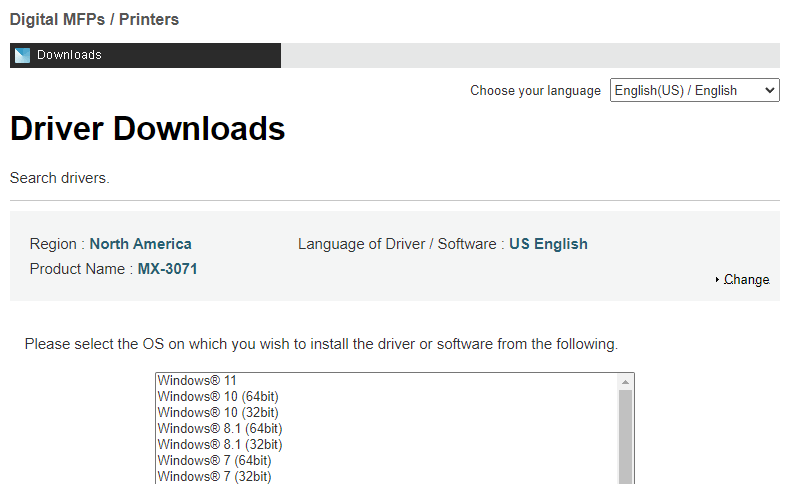
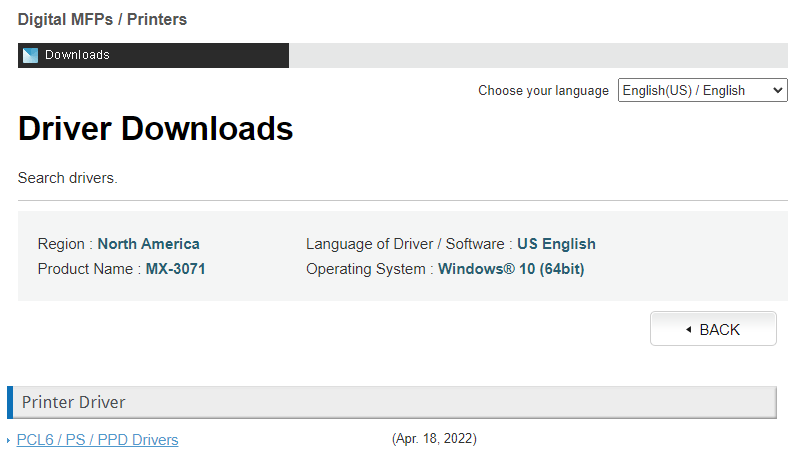
Then click on PCL6 / PS /PPD Drivers
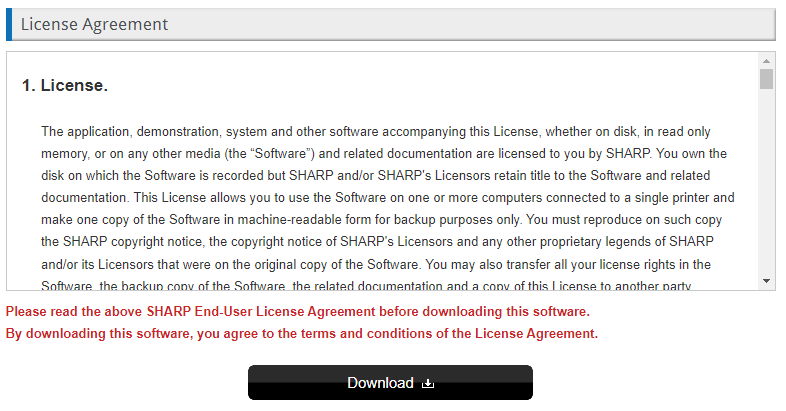
Scroll to bottom of next page and select Download:
Select save location to somewhere you can get to such as your desktop or downloads folder. Once download has completed go ahead and run the program. Step 2) On Setup Window select Next > Program will extract and run Sharp Driver Installation. Select Standard Installation
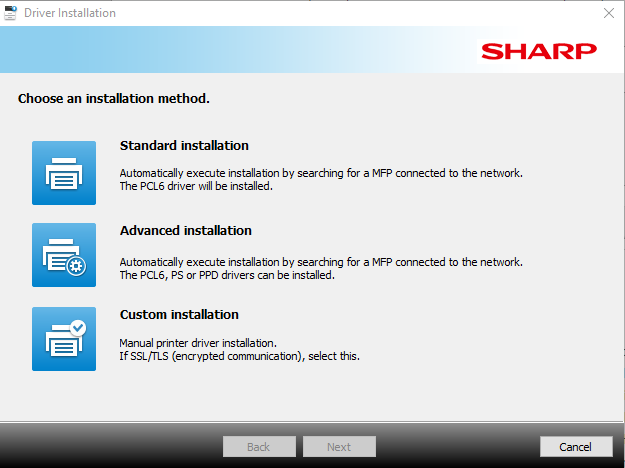
Program will search network for Sharp copiers to install, if given a choice between different machines select the one with either printer.arpa > Click Next > Next
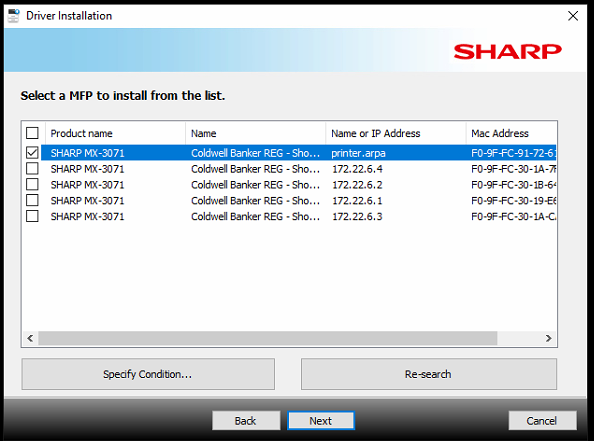
Click Install > Finish
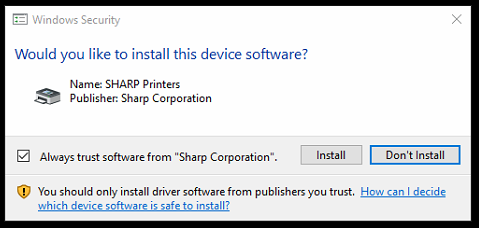
Step 3) Add you copier code to the Sharp MX-3071 driver Click start menu then type Control Panel > Open
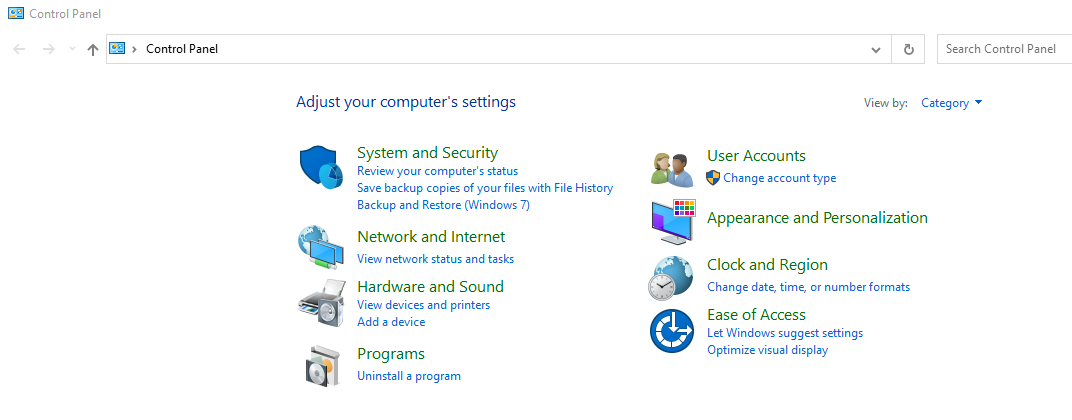
Click View device and printers under Hardware and Sound > Under Printers right click on Sharp MX-3071 PCL6 > Printing Preferences
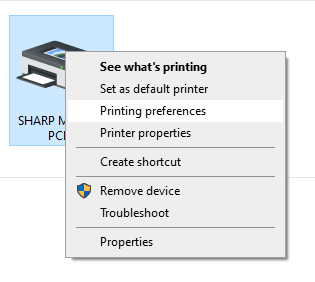
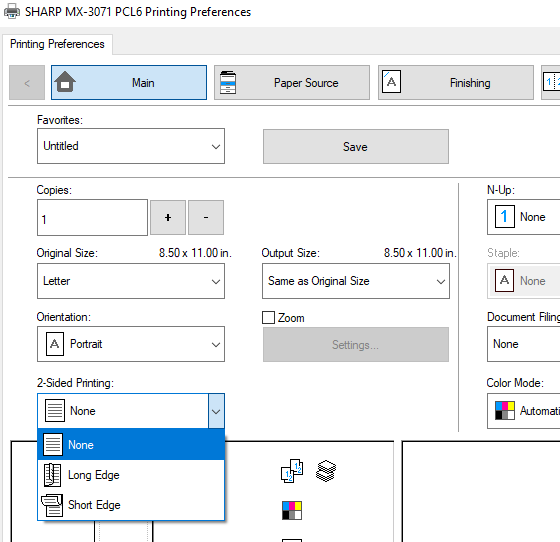
On Main tab 2-Sided Printing: Long Edge > change to None
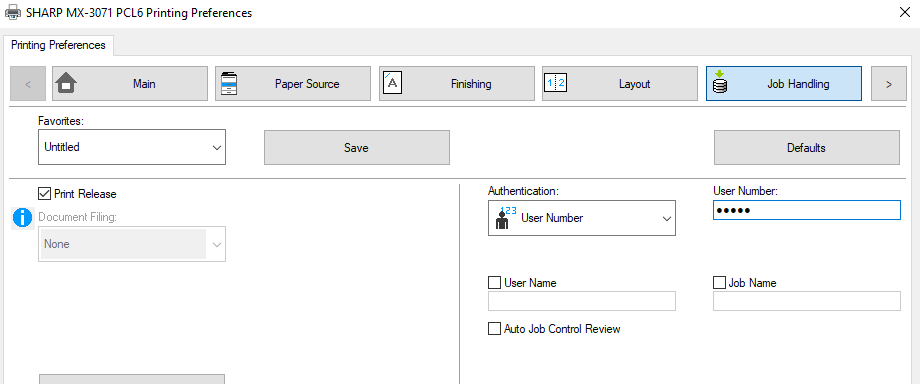
On fifth tab Job Handling > place check on Print Release > Authentication: None change to User Number. Then add your copier code to User Number: (a zero followed by the last four digits of your cell phone number) > Click Apply > Click OK
To verify everything was configured correctly, go ahead and click print and then verify at the copier under your print queue that you see the job you just submitted. If you have any issues with this process or questions, please feel free to submit a ticket to helpdesk@coldwellhomes.com
Stuck at any step? Email helpdesk@coldwellhomes.com or call 920-993-4515 (WI), 815-553-2418 (IL) or 260-416-5128 (IN).
← All copier driver guides · Printing from a phone or tablet