
Sharp copier on macOS
The printer address is printer.arpa at every office — it resolves to the master unit wherever you are connected. Your copier code is a zero followed by the last four digits of your cell phone number.
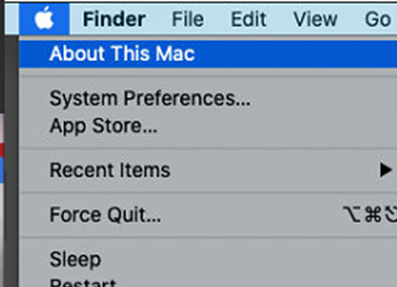
Step 1) Identify the version of OS you are using: Click the Apple in the top left corner and select About this Mac:
The screen that displays will show you what version you are currently running:
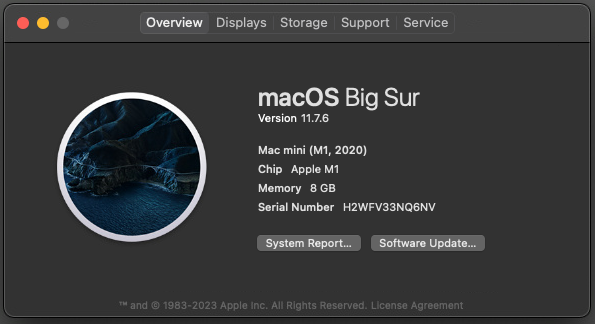
Close this window. Step 2) Go to the Sharp driver download page Select correct version according previous step > Select Mac PS Driver:

Scroll to bottom of next page and select Download:
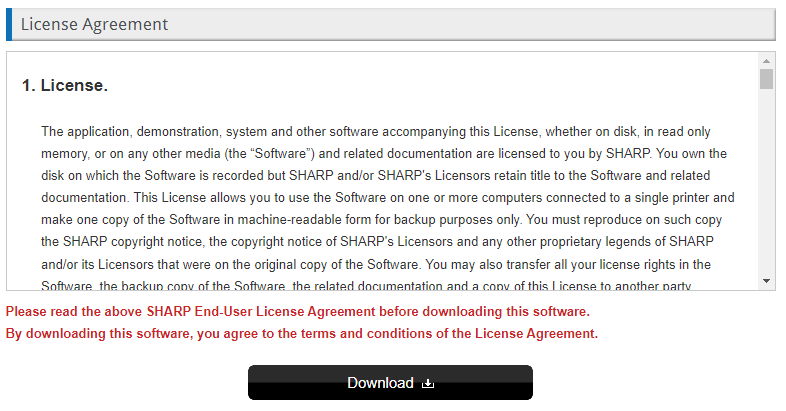
Select save location to somewhere you can get to such as your desktop or downloads folder. Step 3) Navigate to Sharp driver and open the .dmg file
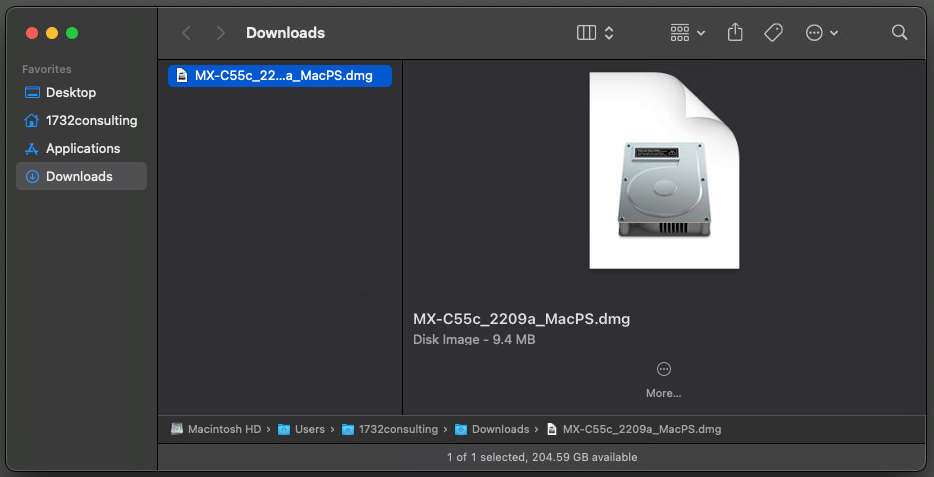
Double click MX-C55 to start driver installation
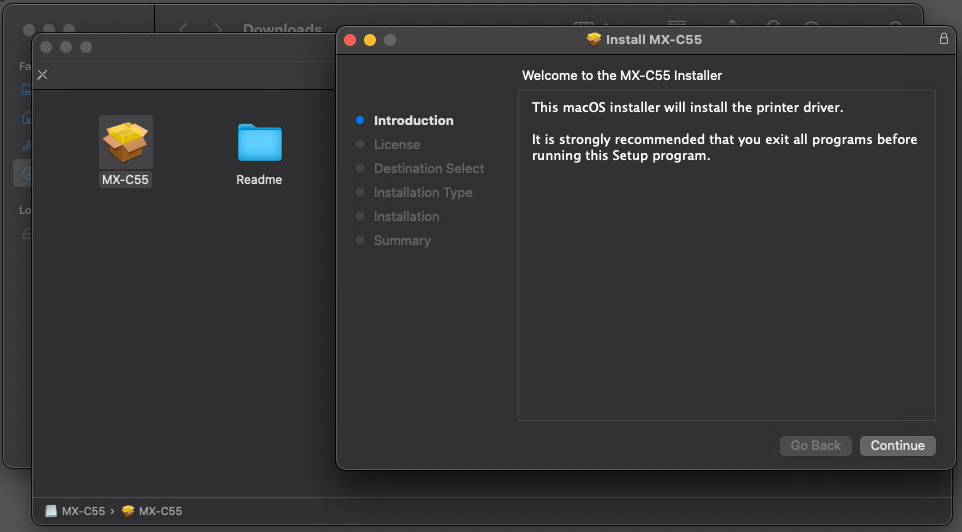
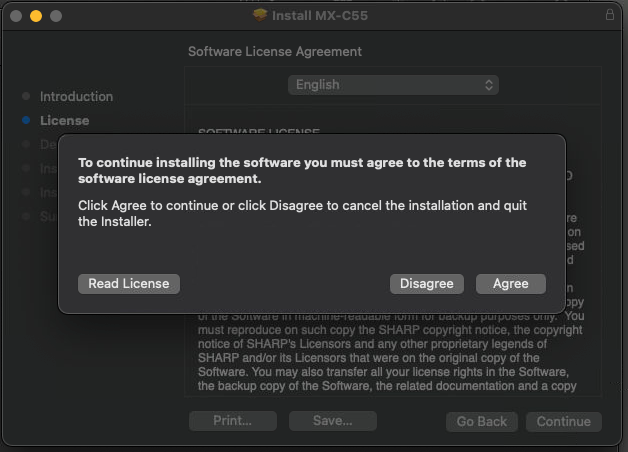
Select Continue > Continue > Agree
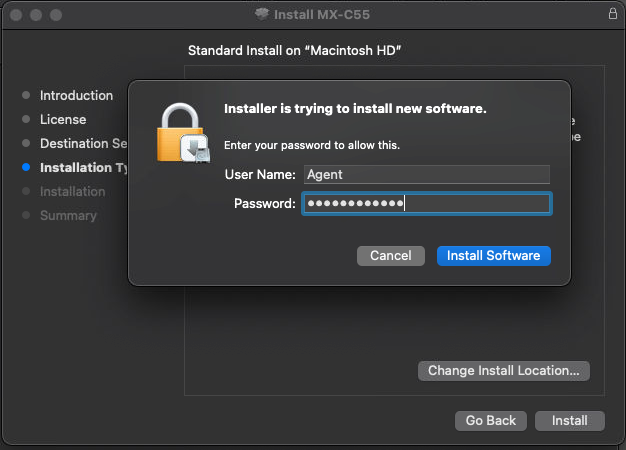
Select Continue > Install > Enter computer password used to login to computer > Install Software
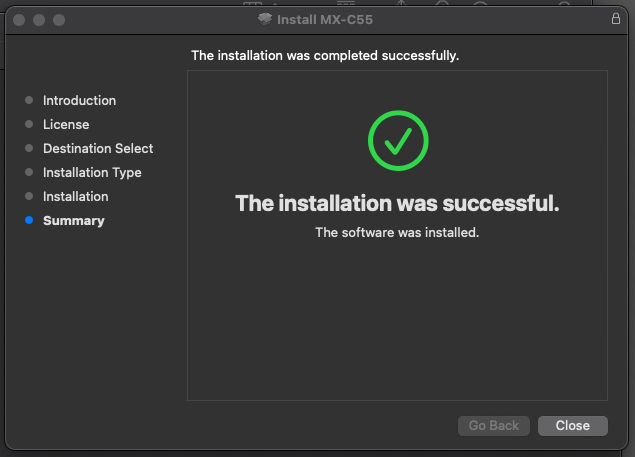
On successful installation > Select Close
Move to Trash
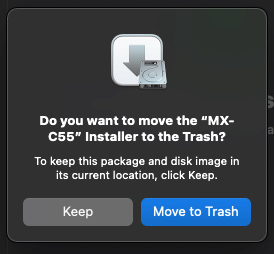
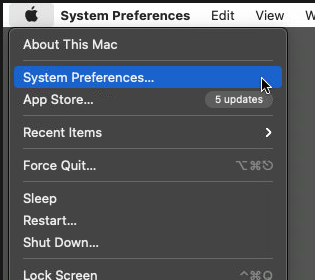
Step 4) Navigate to System Preferences > Printers & Scanners
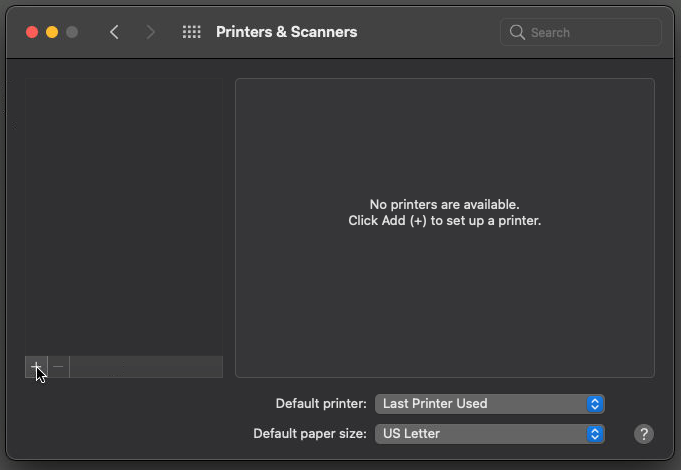
On Printers & Scanners windows click on the + sign to add a new printer
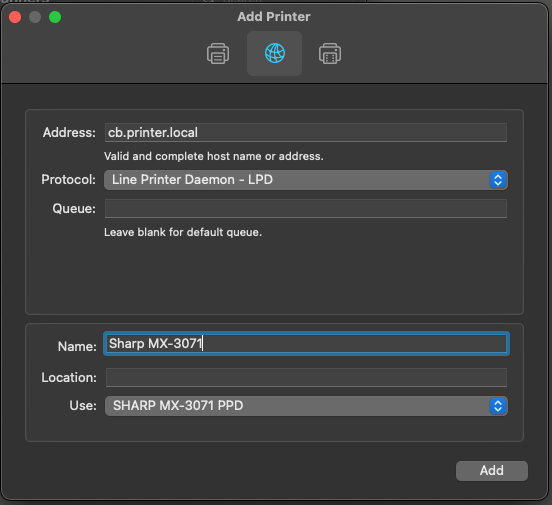
On Add Printer window select second tab (resembles globe) fill out the fields accordingly: Address: printer.arpa Protocol: Line Printer Daemon - LPD Update name from printer.arpa to Name: Sharp MX-3071 Use: SHARP MX-3071 PPD (should populate automatically when installing at an office) Click Add
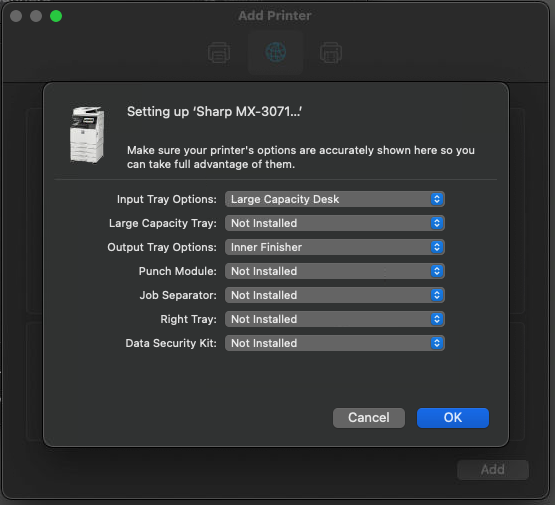
On copier Settings windows update the following: Input Tray Options: Large Capacity Desk Output Tray Options: Inner Finisher Click OK
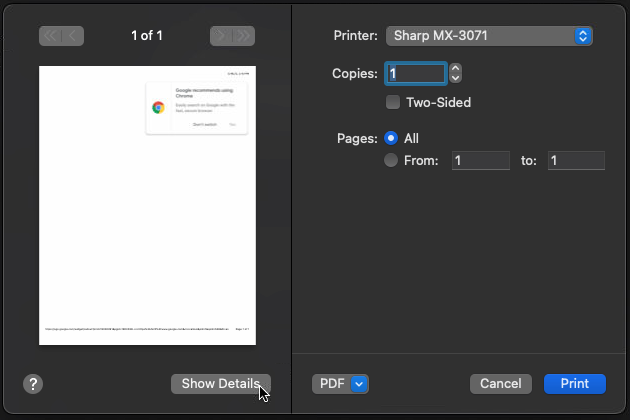
Close out of Printers & Scanners window. Step 5) Open a program to add your personal copier code to your copier driver. In this example we will open Safari and click File > Print or Command-P to bring up your printer window. Make sure Printer is set to your newly created Sharp MX-3071 printer then select Show Details:
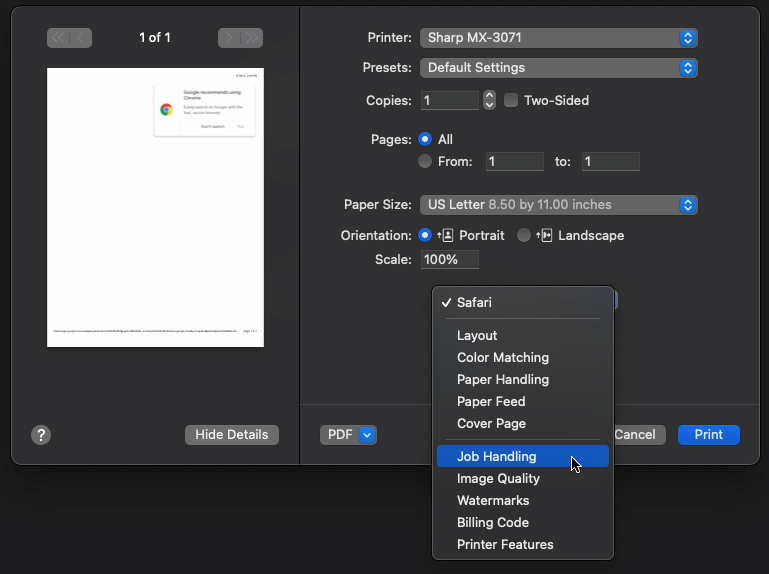
Then click drop down to select Job Handling:
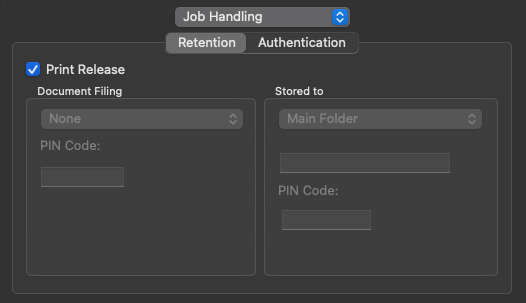
On Job Handling window Retention tab > place a check next to Print Release
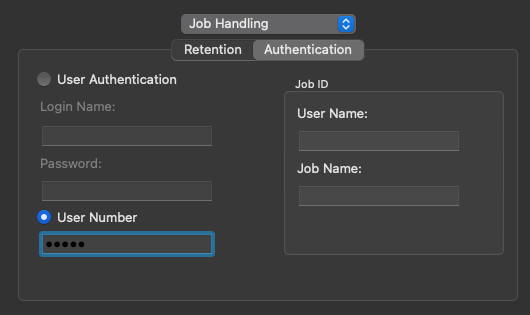
On same window select Authentication tab and clear the User Name Job Name field then enter your copier code under User Number (a zero followed by the last four digits of your cell phone number)
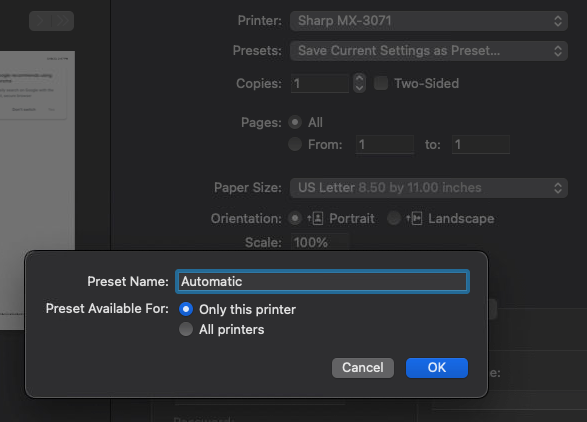
Then at the top the print window click the drop down under Presets and select Save Current Settings as Preset... > update Preset Name: Automatic > Select OK
To verify everything was configured correctly, go ahead and click print and then verify at the copier under your print queue that you see the job you just submitted. If you have any issues with this process or questions, please feel free to submit a ticket to helpdesk@coldwellhomes.com
***Please note if you primarily use Google Chrome to print from, we recommend disabling the print preview as the Chrome does not send your copier code from the print preview screen so you jobs will be rejected at the copier***
To disable the Google Chrome print preview, follow the steps below:
1. Make sure to quit out of Google Chrome. To do this, right click on the Google Chrome icon, and click Quit. 2. Launch Terminal on your Mac. This can be found by going to Applications -> Utilities. 3. Type in defaults write com.google.Chrome DisablePrintPreview -bool true 4. Click out of Terminal and open Google Chrome. 5. Click Command+P or go to File -> Print. 6. Check the default printer option from OS X now in use with the Google Chrome browser app.
To enable the Chrome print preview, follow the steps below:
1. Make sure to quit out of Google Chrome. To do this, right click on the Google Chrome icon, and click Quit. 2. Launch Terminal on your Mac. This can be found by going to Applications -> Utilities. 3. Type in defaults write com.google.Chrome DisablePrintPreview -bool false 4. Click out of Terminal and open Google Chrome. 5. Click Command+P or go to File -> Print. 6. Check the default printer option from OS X now in use with the Google Chrome browser app.
Konica Minolta Copier Installation Instructions
Internal IT assist you can submit a ticket to helpdesk@coldwellhomes.com
To attempt self installation please see directions below
Download the Konica Minolta macOS driver (41 MB)
Download the Konica Minolta Windows driver (25 MB)
Stuck at any step? Email helpdesk@coldwellhomes.com or call 920-993-4515 (WI), 815-553-2418 (IL) or 260-416-5128 (IN).
← All copier driver guides · Printing from a phone or tablet