
Konica Minolta copier on macOS
The printer address is printer.arpa at every office — it resolves to the master unit wherever you are connected. Your copier code is a zero followed by the last four digits of your cell phone number.
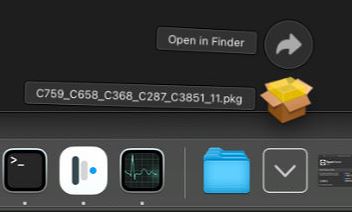
Step 1) Download the Konica Minolta macOS driver (41 MB) Select save location to somewhere you can get to such as your desktop or downloads folder. Once download has completed navigate to download location and open the .pkg file
> Select Continue
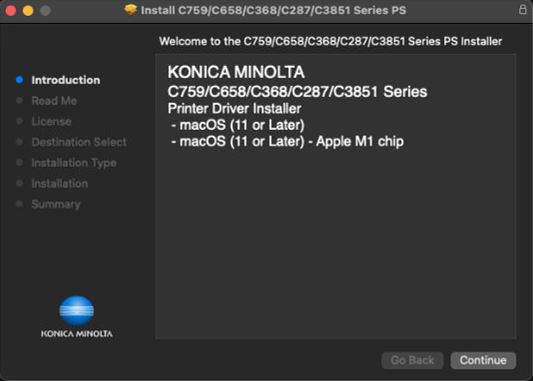
> Select Continue
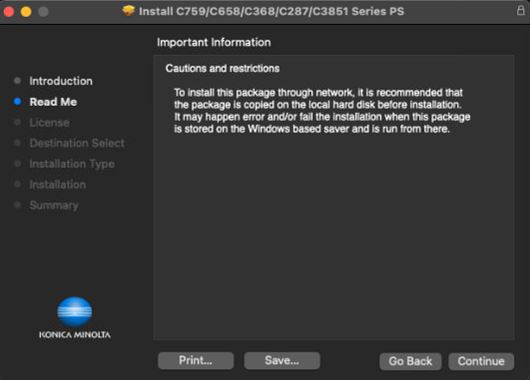
> Select Continue
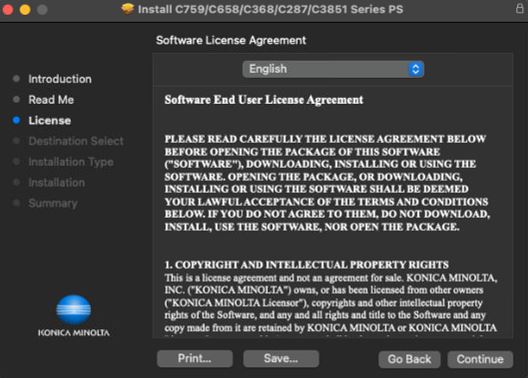
> Select Agree
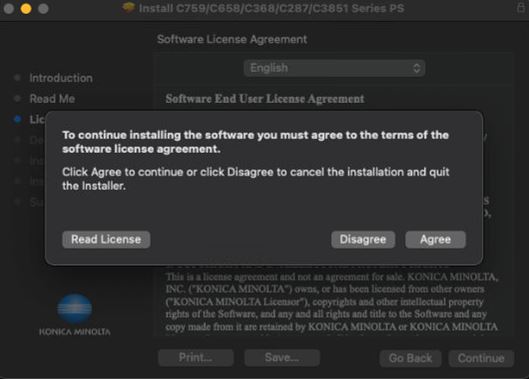
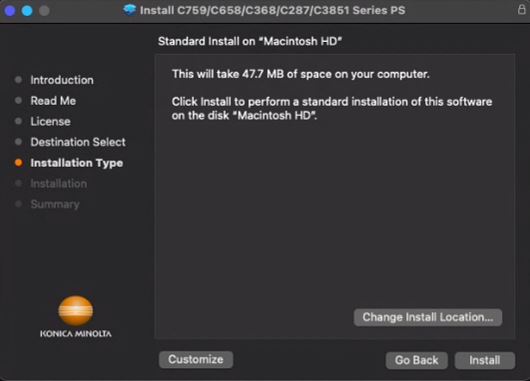
> Select Install
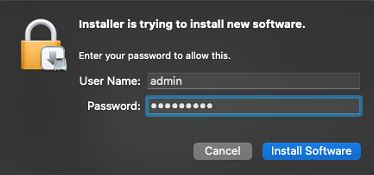
> Enter your admin credentials for the computer (password used to login to computer), Select Install Software
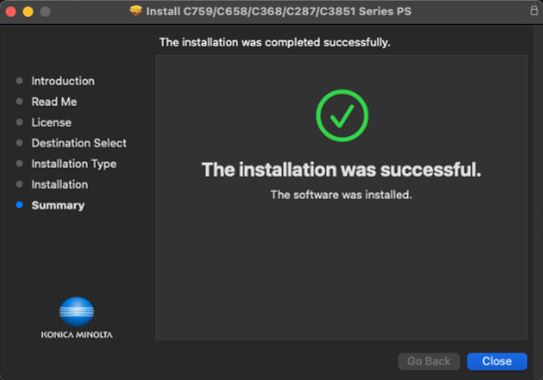
> Select Close
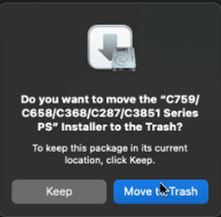
> Then select Move to Trash as we no longer need the .pkg file
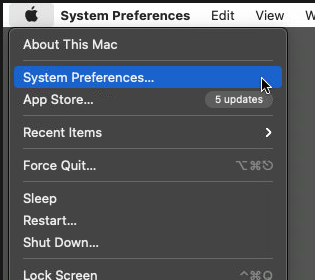
Step 2) Navigate to your System Preferences... Printers & Scanners
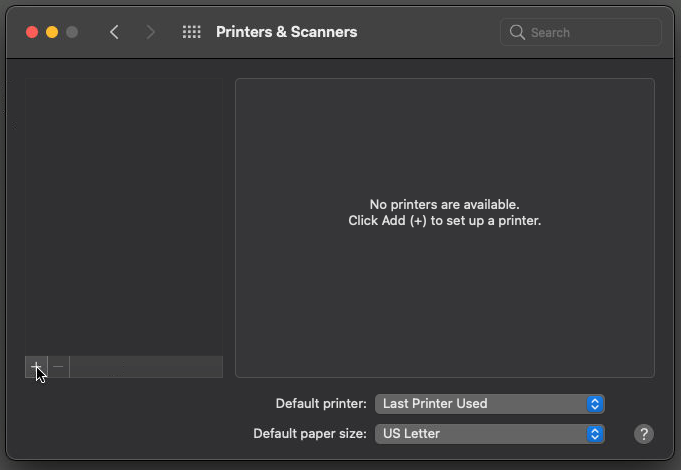
> Click + symbol to add a new printer
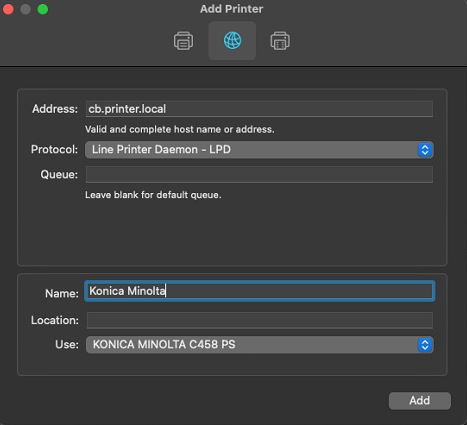
> On the Add Printer window select second tab (resembles globe) fill out the fields accordingly: Address: printer.arpa Protocol: Line Printer Daemon - LPD Update name from printer.arpa to Name: Konica Minolta Use: KONICA MINOLTA C458 PS (should populate automatically when installing at an office) Click Add
> Click OK
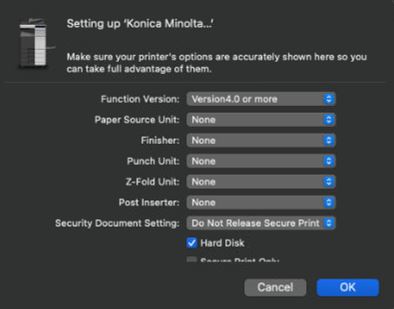
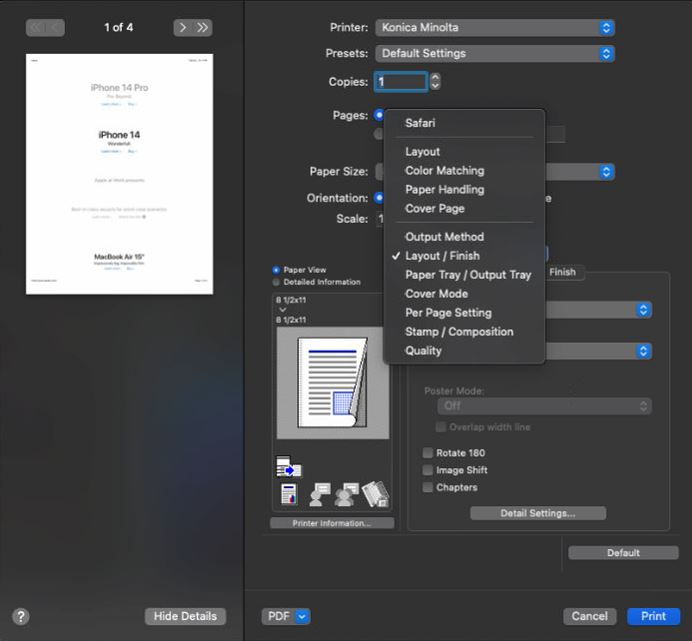
> After selecting OK you can close out of your system preferences Step 3 (optional) Navigate to a program where you can send a test print from. In this example we will use Safari (but any program you can print from should work). > On the print page select the drop down and select Layout / Finish
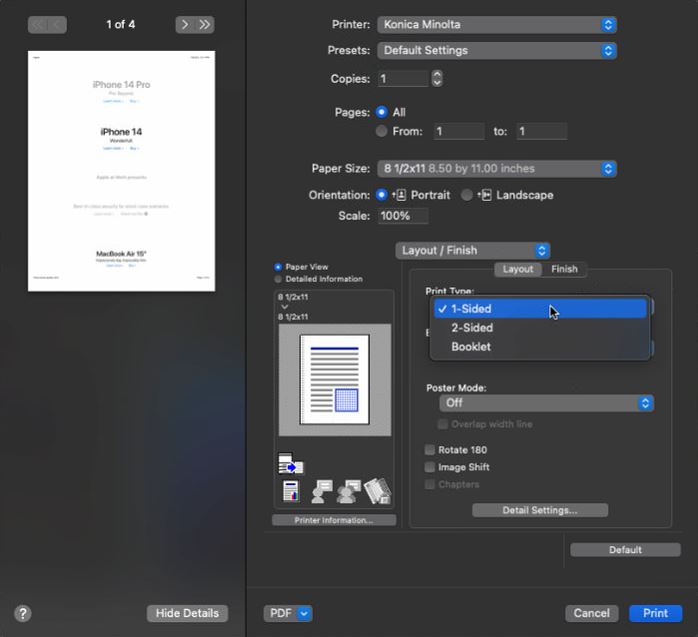
> Under Print Type: change from 2-Sided > 1-Sided
> To keep your printer from reverting back to 2-Sided printing, save this change as a Presets, here we will name is Automatic
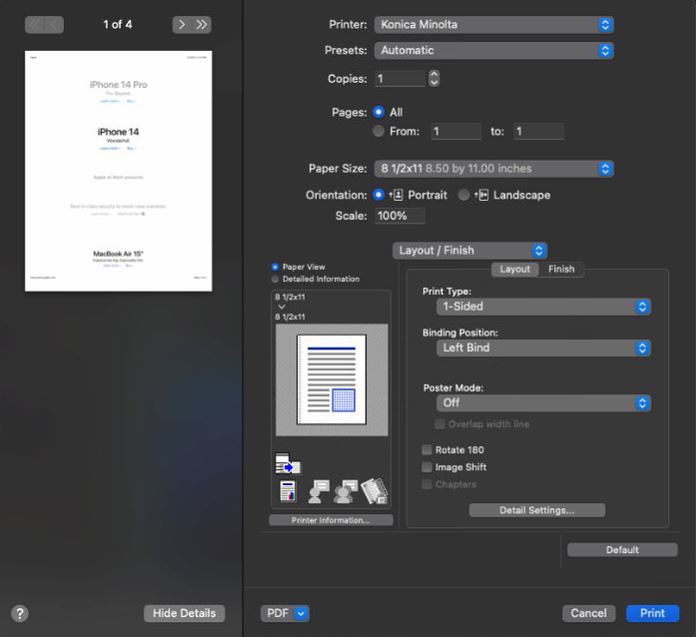
To verify everything was configured correctly, go ahead and click print, then verify at the copier that your test print has successfully printed. If you have any issues with this process or questions, please feel free to submit a ticket to helpdesk@coldwellhomes.com
Stuck at any step? Email helpdesk@coldwellhomes.com or call 920-993-4515 (WI), 815-553-2418 (IL) or 260-416-5128 (IN).
← All copier driver guides · Printing from a phone or tablet